Merge 2 surfaces
Merges two compatible surface entities into a single surface.
Keyboard shortcut
V
What it does
Use Merge 2 surfaces to simplify geometry when two neighboring surfaces should behave as one (for example after partitioning, imprinting, or cleanup operations).
The command:
- takes exactly two input surfaces,
- checks merge compatibility (topology/geometry),
- removes the internal boundary between them when possible,
- creates one merged surface entity.
If one or both surfaces are bounded by exactly 3 curves, you can provide the curve to remove on each triangular surface.
When to use it
Use this command when:
- two surfaces are part of the same physical face but were split earlier,
- meshing constraints should be applied on one unified surface,
- downstream operations require a single continuous surface.
Inputs
- 1. Surface #1: first surface to merge.
- 2. Surface #2: second surface to merge.
- 3. Curve 1: curve on the first surface to remove when that surface has 3 boundary curves.
- 4. Curve 2: curve on the second surface to remove when that surface has 3 boundary curves.
Preconditions
For a successful merge, the two selected surfaces should typically:
- share a common curve/boundary,
- be geometrically compatible (same underlying support or mergeable representation),
- belong to the same model context/body rules supported by HexaMSH.
If these conditions are not met, HexaMSH can return an error or an invalid/degraded CAD result.
Output
- One new merged surface replaces the two input surfaces.
- Shared internal boundaries (curve and points) are removed.
Basic usage
Run from the GUI Geometry/Merge/Two Surfaces, then select the two surfaces.
If prompted for triangular cases, select the curve to remove on each relevant surface.
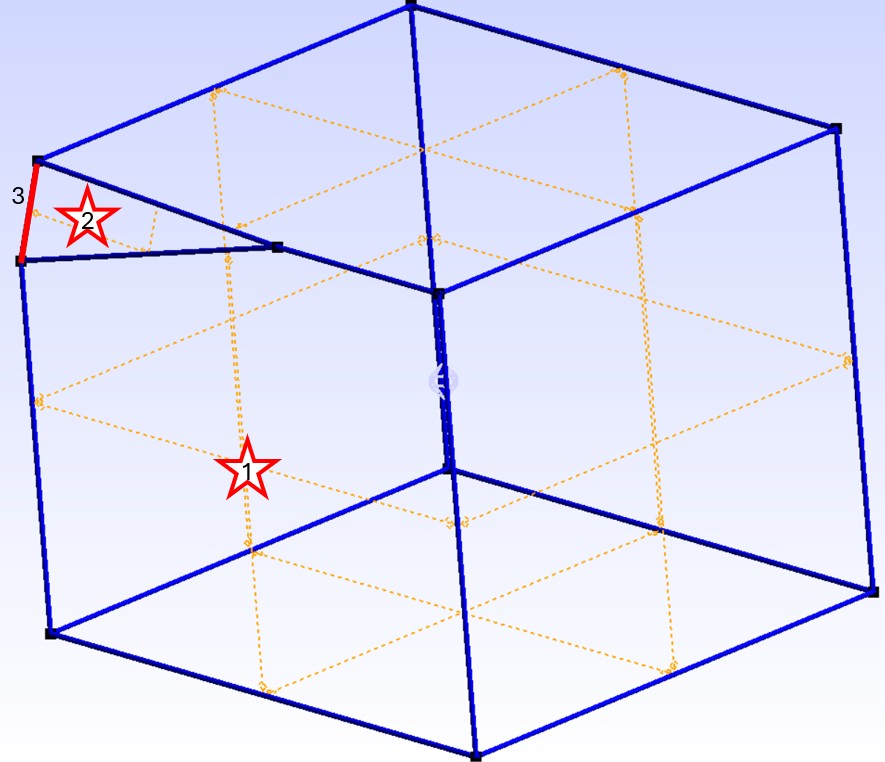
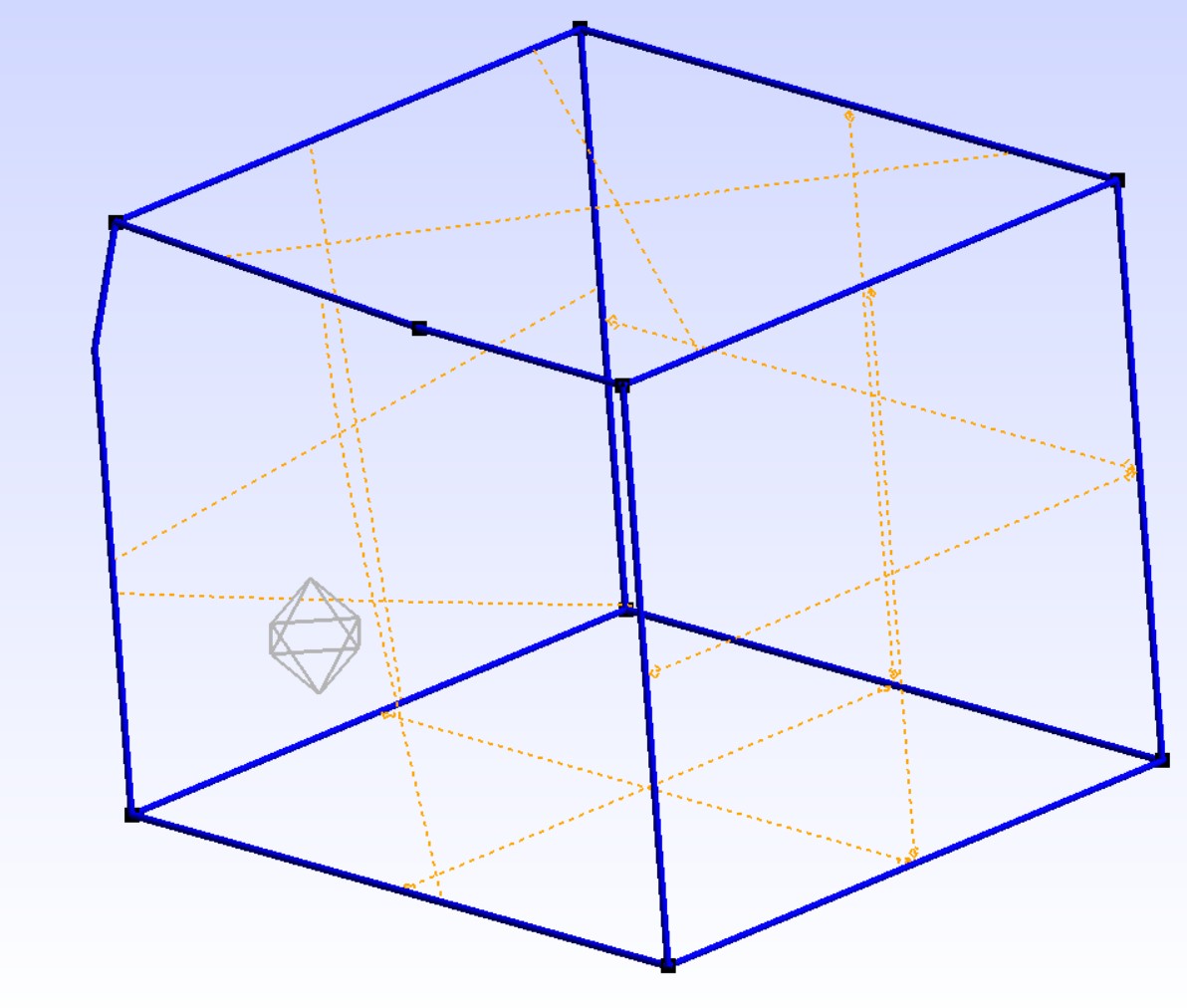
In the example above, a curve is explicitly selected for a surface with 3 boundary curves.
Notes
- Merge operation is local: only the two selected surfaces are processed.
- Perform merge before any other CAD modification and mesh sizing when possible, to avoid rework.